
How to connect Arrows to Slack
Arrows sends each sales rep a direct message when their deal needs attention. This
guide shows how to connect Arrows to your Slack workspace.
The install takes about two minutes. You do it once per Arrows organization.
What the Slack app does
After you connect it, Arrows sends a direct message to a sales rep when:
a new deal space is created for that rep, or
the agent finishes work in a deal space and the rep needs to review it.
Each message names the deal, says what happened, and links back to Arrows.
The app only sends direct messages. It does not post in channels. It does not read
your messages. It has no slash commands.
Before you start
You need:
An Arrows account that belongs to an organization.
Permission to install apps in your Slack workspace. Ask a Slack workspace owner or admin if you are not sure.
Step 1: Open your organization settings
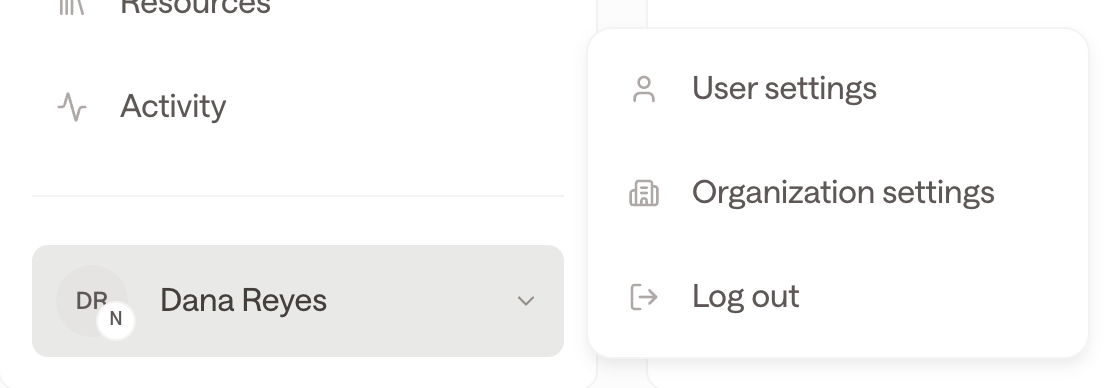
In Arrows, click your name at the bottom of the left sidebar. Then click
Organization settings.
Step 2: Open the Integrations tab
On the Organization settings page, click the Integrations tab.

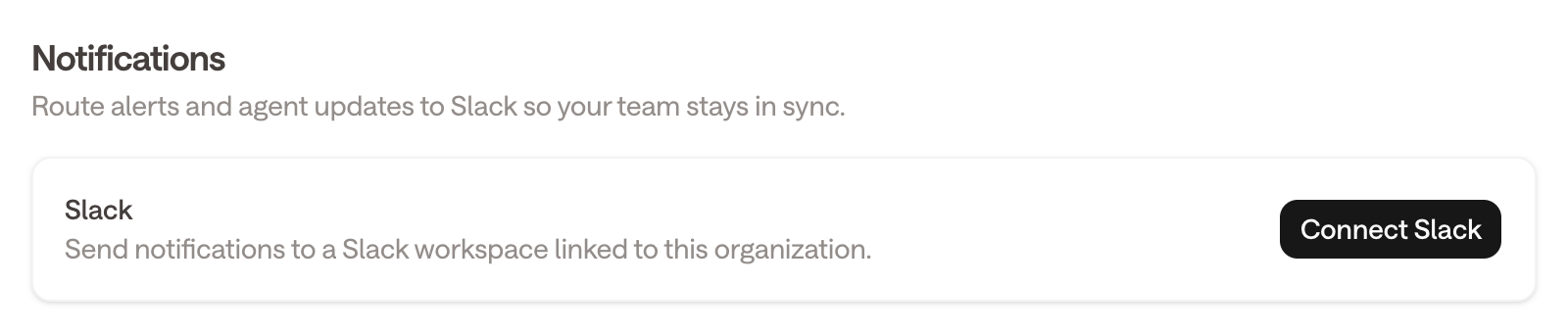
Step 3: Click Connect Slack
Scroll down to the Notifications section. Click Connect Slack.
Step 4: Approve the permissions in Slack
Arrows sends you to Slack. Slack shows you what the app wants to do.
Check the workspace name in the top right corner. Change it if it is the wrong
workspace.Read the list of permissions. See Permissions below for what each
one is for.Click Allow.
If you click Cancel instead, Arrows returns you to the Integrations tab and shows
"Slack authorization was cancelled." Nothing is saved. You can start again.
Step 5: Check that Arrows is connected
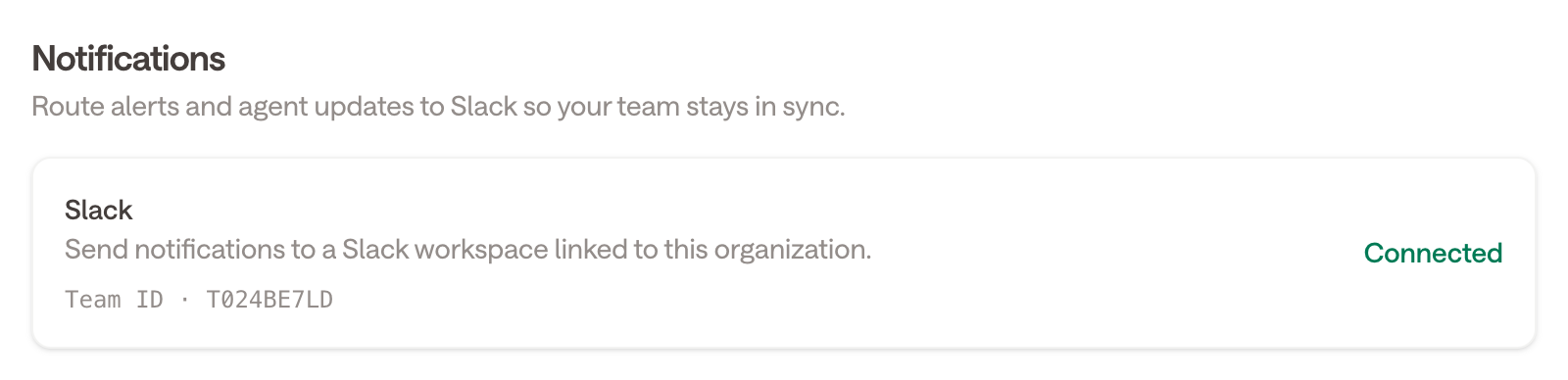
Slack sends you back to Arrows. The Notifications section now shows Connected and
your Slack team ID.
The install is done.
Step 6: Check that your reps will get messages
Arrows matches each Slack member to an Arrows user by email address. A rep only
receives direct messages if the two email addresses are the same.
For example, a rep whose Arrows email is dana@northwind.com must also usedana@northwind.com in Slack.
Arrows builds this list right after you connect, and again whenever someone joins or
leaves your Arrows organization. You do not need to do anything.
If a rep is not getting messages, check that their Slack email matches their Arrows
email. Fix whichever one is wrong, then ask Arrows support to rebuild the list.
What the messages look like
Arrows sends one short message per event. It is always a direct message from the
Arrows app, never a channel post.
A message reads like this:
Drafted a pricing follow-up email for Initech after the reminder fired.
Review now →
Arrows never sends an email, updates your CRM, or messages a customer on the rep's
behalf. The rep reviews and approves everything. The messages are written to make
this clear.
Permissions
Arrows asks for three bot permissions. It asks for nothing else.
Permission | What Arrows uses it for |
|---|---|
| Send the direct message to the rep. |
| Read the list of members in your workspace, to find the rep. |
| Read member email addresses, to match each Slack member to their Arrows account. |
Arrows stores the access token in encrypted form. It stores your Slack team ID and the
Slack user ID of each matched member. It does not store your messages.
Removing the app
Remove the app from Slack:
In Slack, click your workspace name.
Go to Tools & settings → Manage apps.
Find Arrows and click it.
Click Remove App.
Arrows stops sending messages as soon as you do this.
Arrows has no disconnect button in the app today. To also delete the stored
connection, email help@arrows.to and ask us to remove your Slack connection.
If something goes wrong
Arrows returns you to the Integrations tab and shows a message at the top of the page.
Message | What to do |
|---|---|
Slack authorization was cancelled. | You clicked Cancel in Slack. Click Connect Slack again. |
Invalid or expired OAuth state. | The install took more than one hour. Click Connect Slack again. |
OAuth session did not match your login. | You signed in as a different user part way through. Sign in again, then click Connect Slack again. |
You don't have access to this organization. | Your Arrows account is not a member of this organization. Ask an admin to add you. |
Sign in and select an organization to connect Slack. | Sign in to Arrows and pick an organization, then try again. |
Slack is not configured. | This is a problem on the Arrows side. Email help@arrows.to. |
For anything else, email help@arrows.to.