
How to connect Arrows to HubSpot
Arrows integrates HubSpot deals and companies with Arrows spaces, which lets users:
Keep deal context (emails, meetings, calls, and notes) in a space so the agent can work the deal.
Review and approve HubSpot field updates before anything is written back.
Install the app
Log in to Arrows.
Open Connectors in the left sidebar.
Open the Marketplace tab and search for HubSpot.
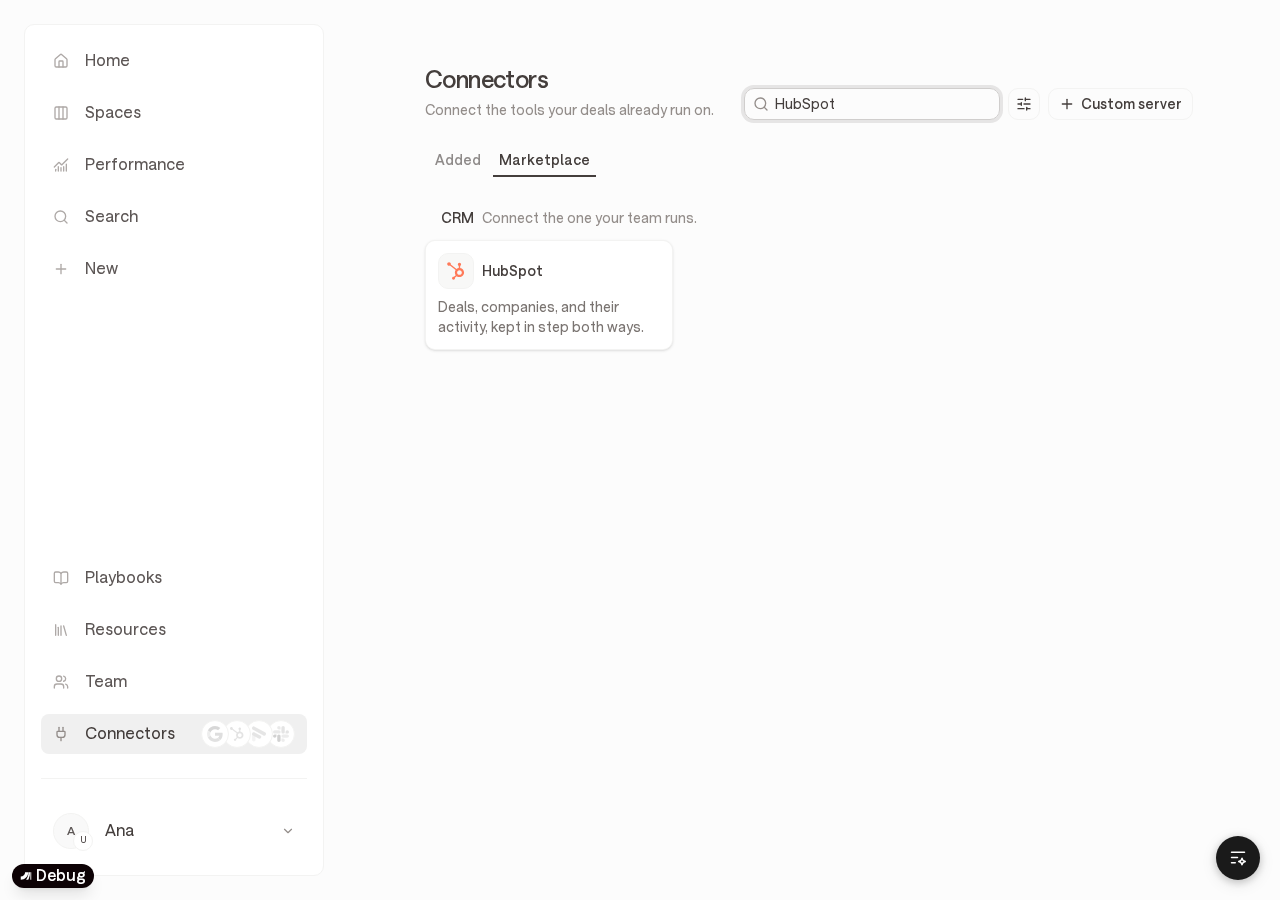
Open the HubSpot card.
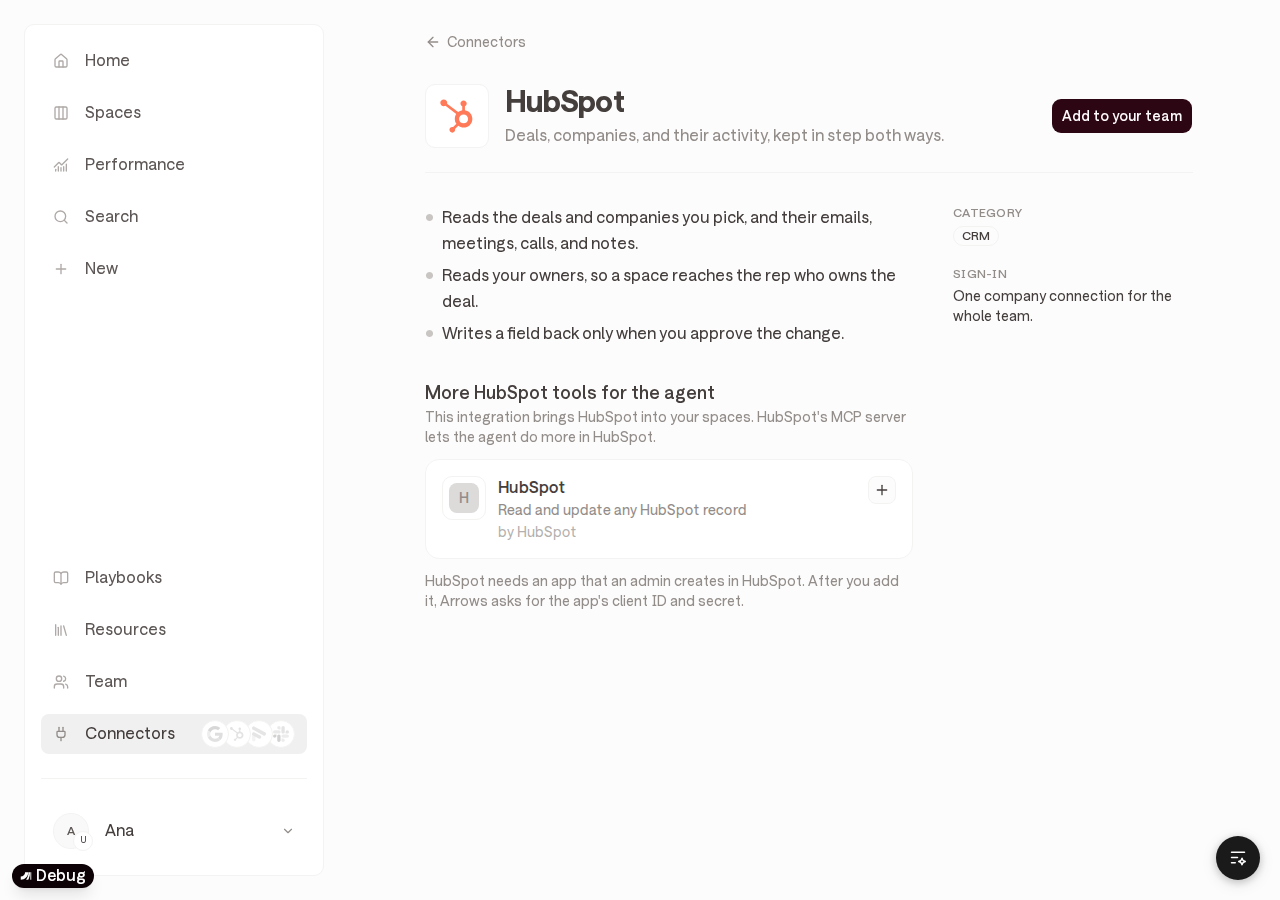
Click Add to your team.
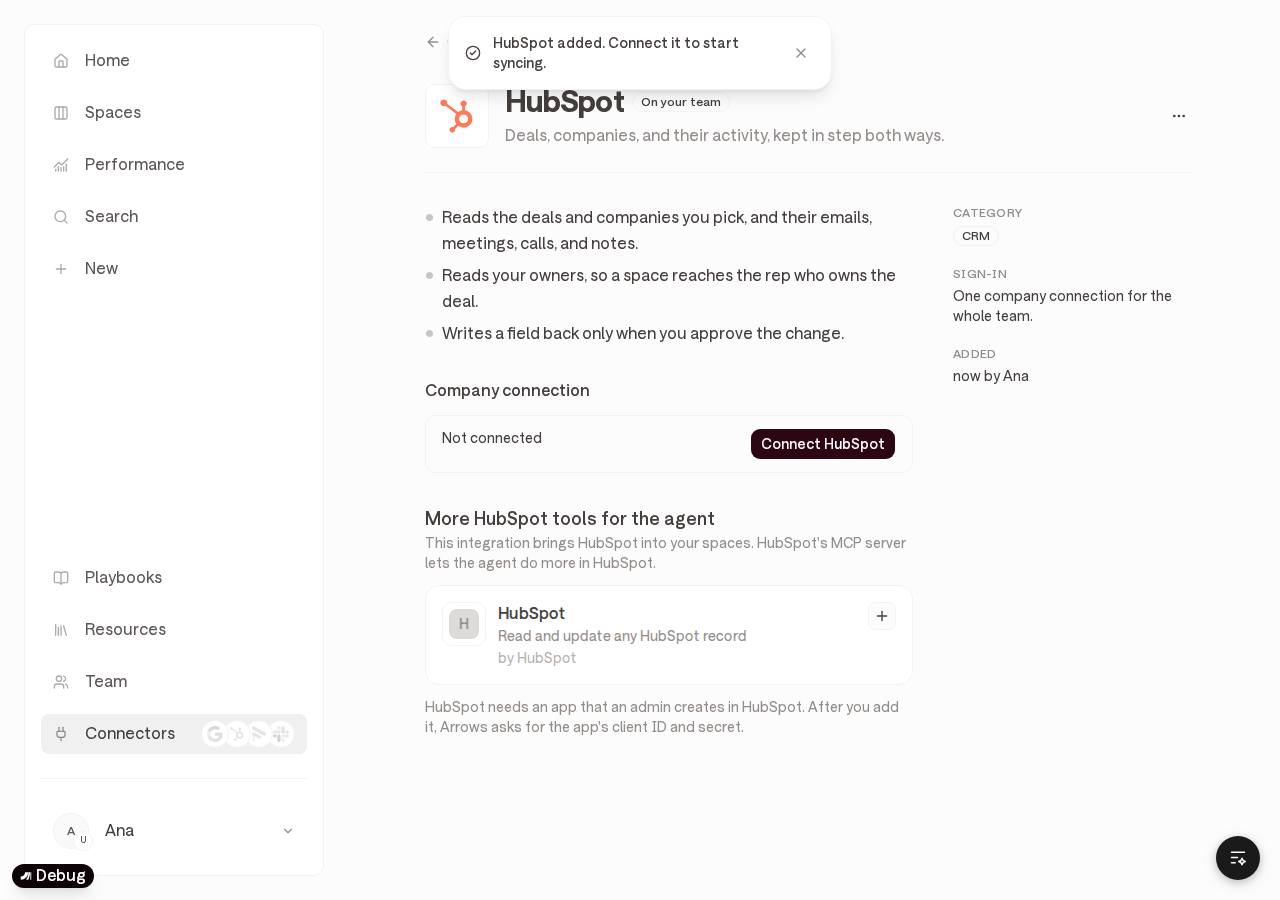
Click Connect HubSpot. You are redirected to HubSpot.
Select the HubSpot account to connect.
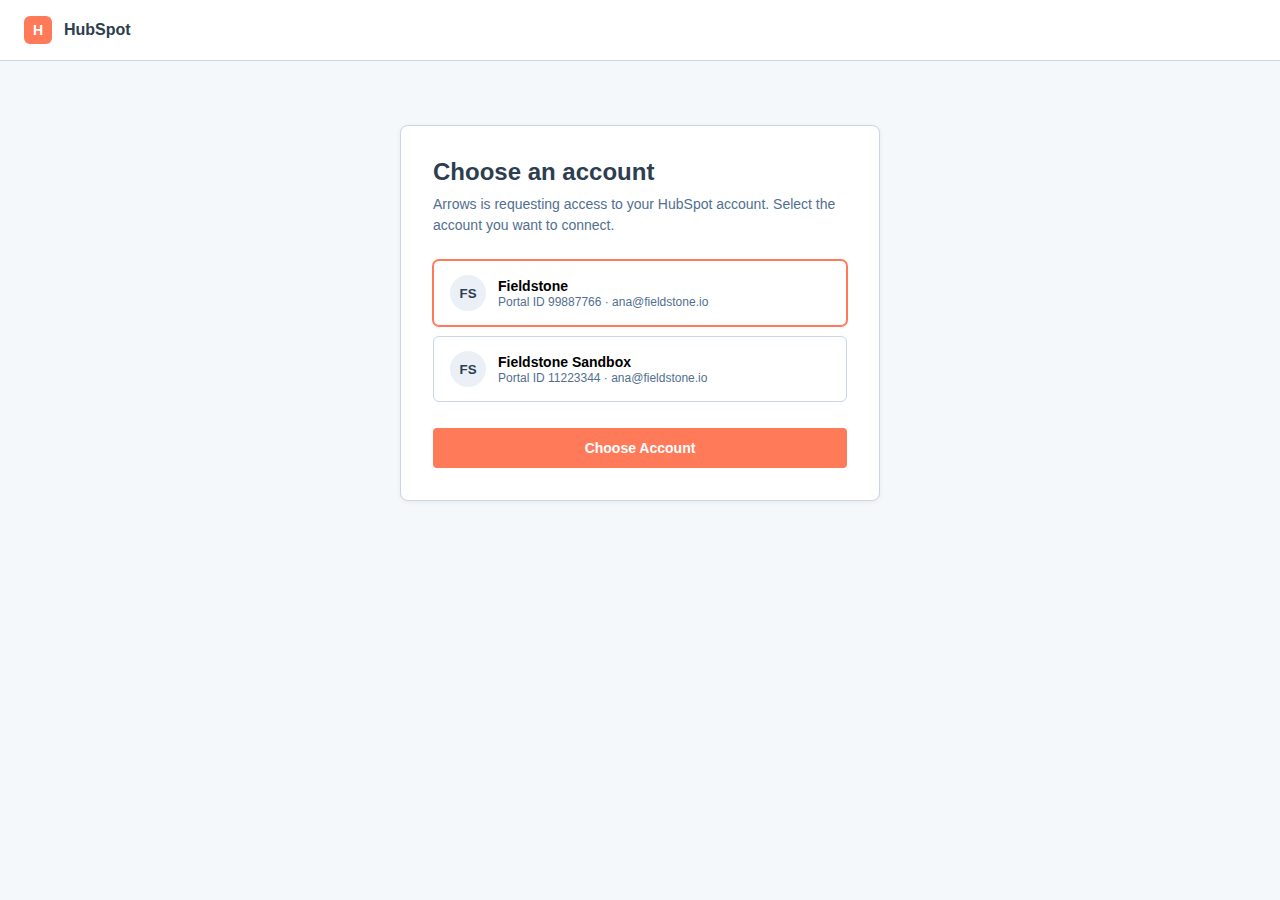
Review the requested scopes. Arrows requests access to:
View and edit deals (
crm.objects.deals.read,crm.objects.deals.write)View and edit companies (
crm.objects.companies.read,crm.objects.companies.write)View and edit contacts (
crm.objects.contacts.read,crm.objects.contacts.write)View owners (
crm.objects.owners.read)Read sales emails (
sales-email-read)
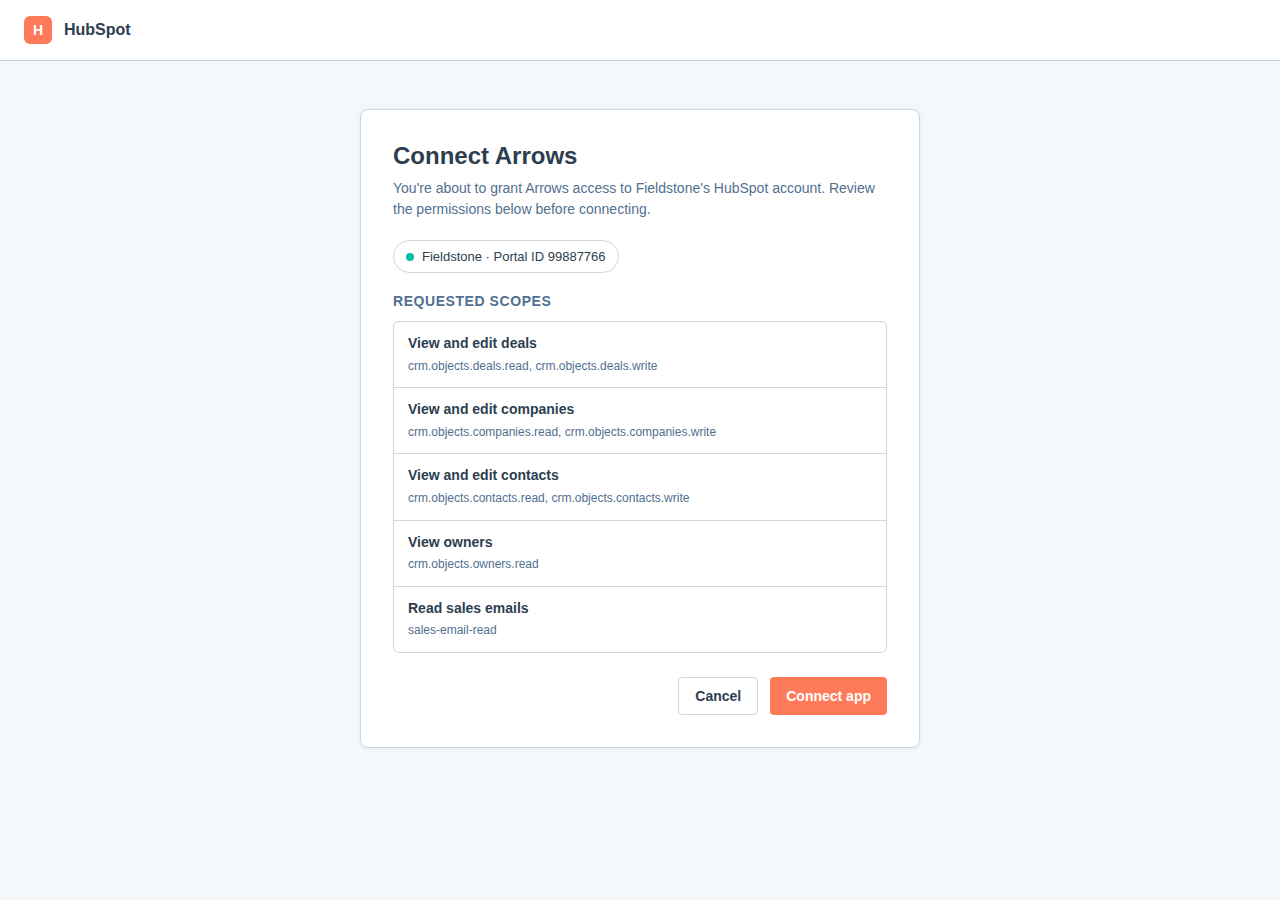
Click Connect app.
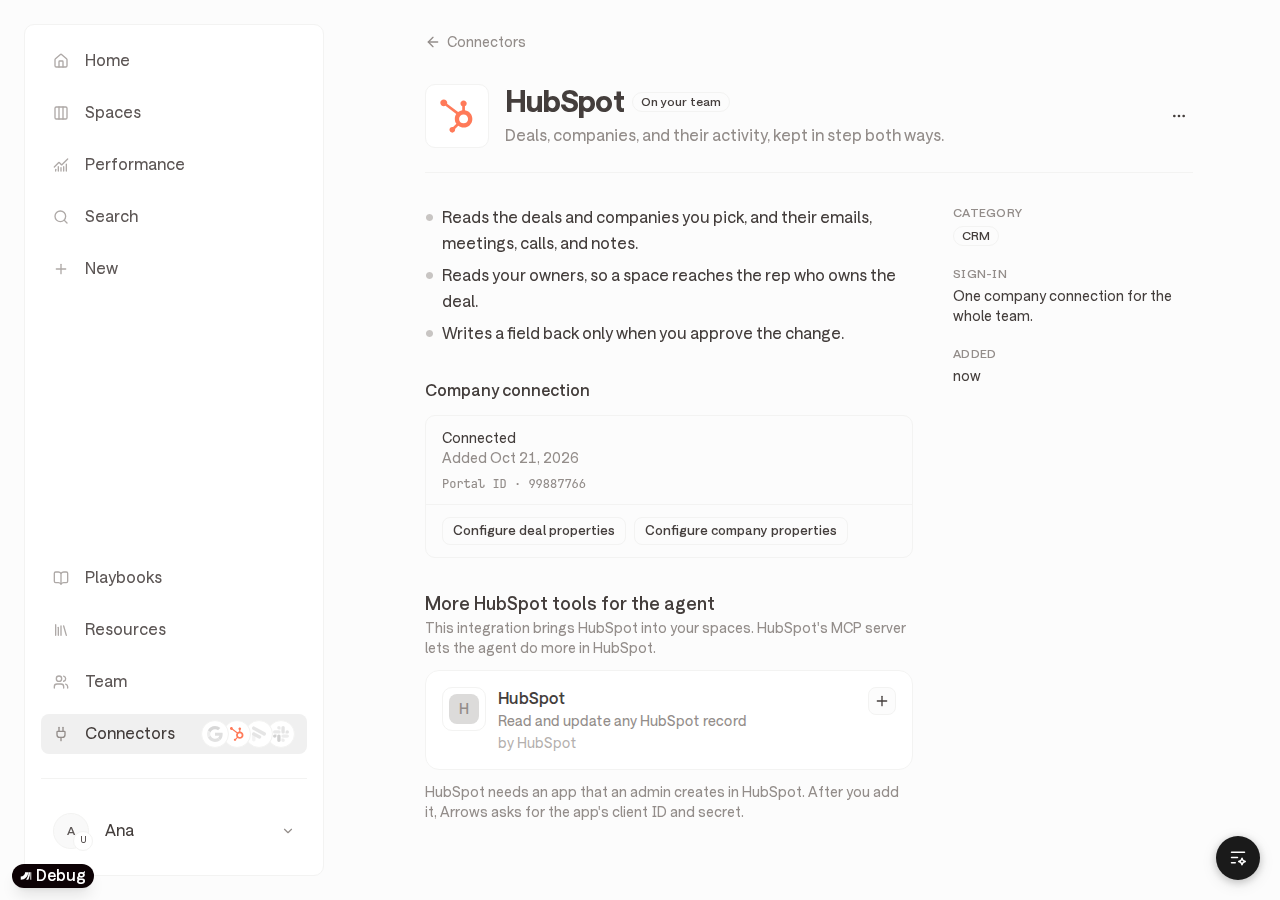
You return to the HubSpot connector page in Arrows. The company connection shows as Connected, with your portal ID.
Configure the app
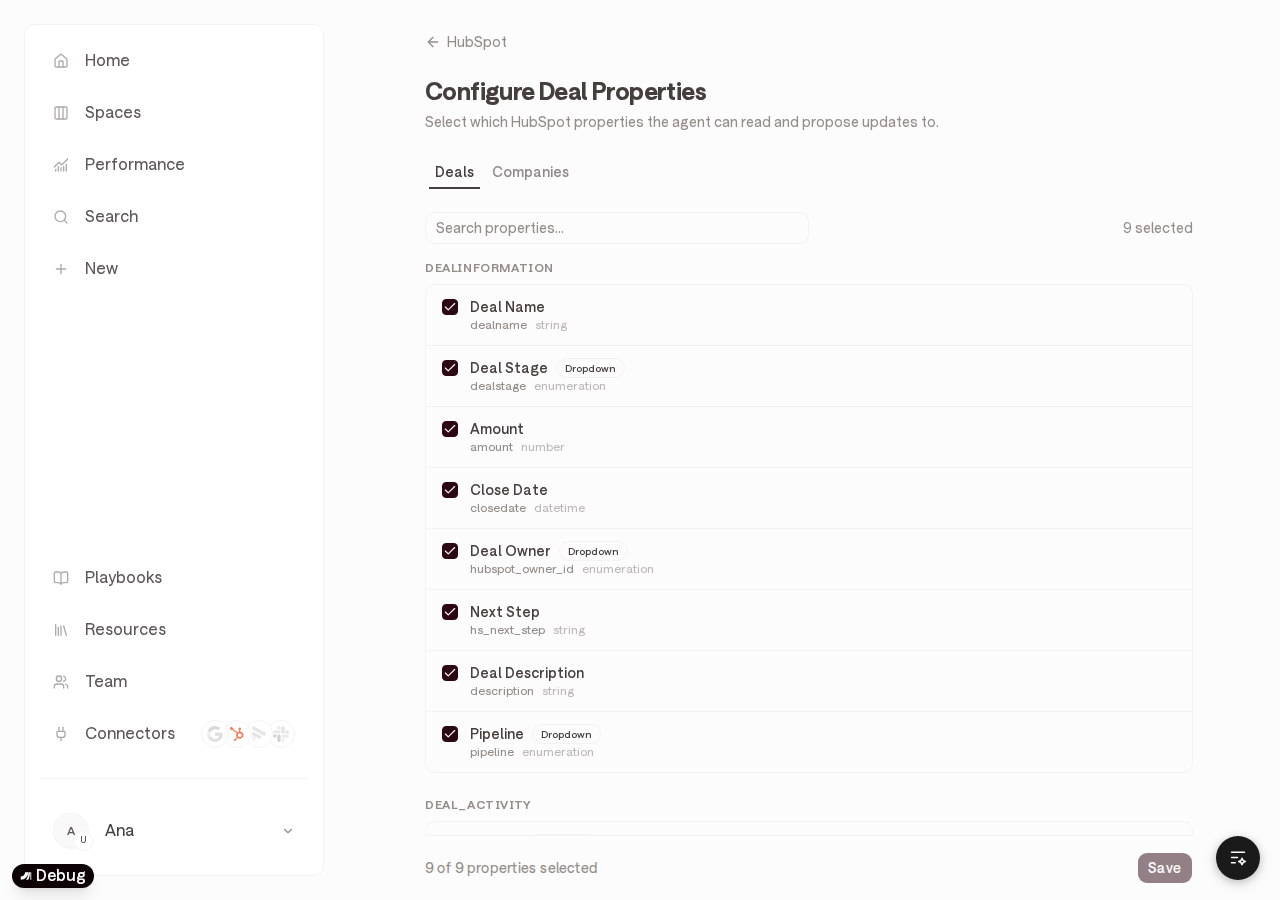
On the HubSpot connector page, click Configure deal properties.
Select which deal properties the agent can read and propose updates for, then click Save.
Open the Companies tab (or click Configure company properties on the connector page) and select company properties the same way.
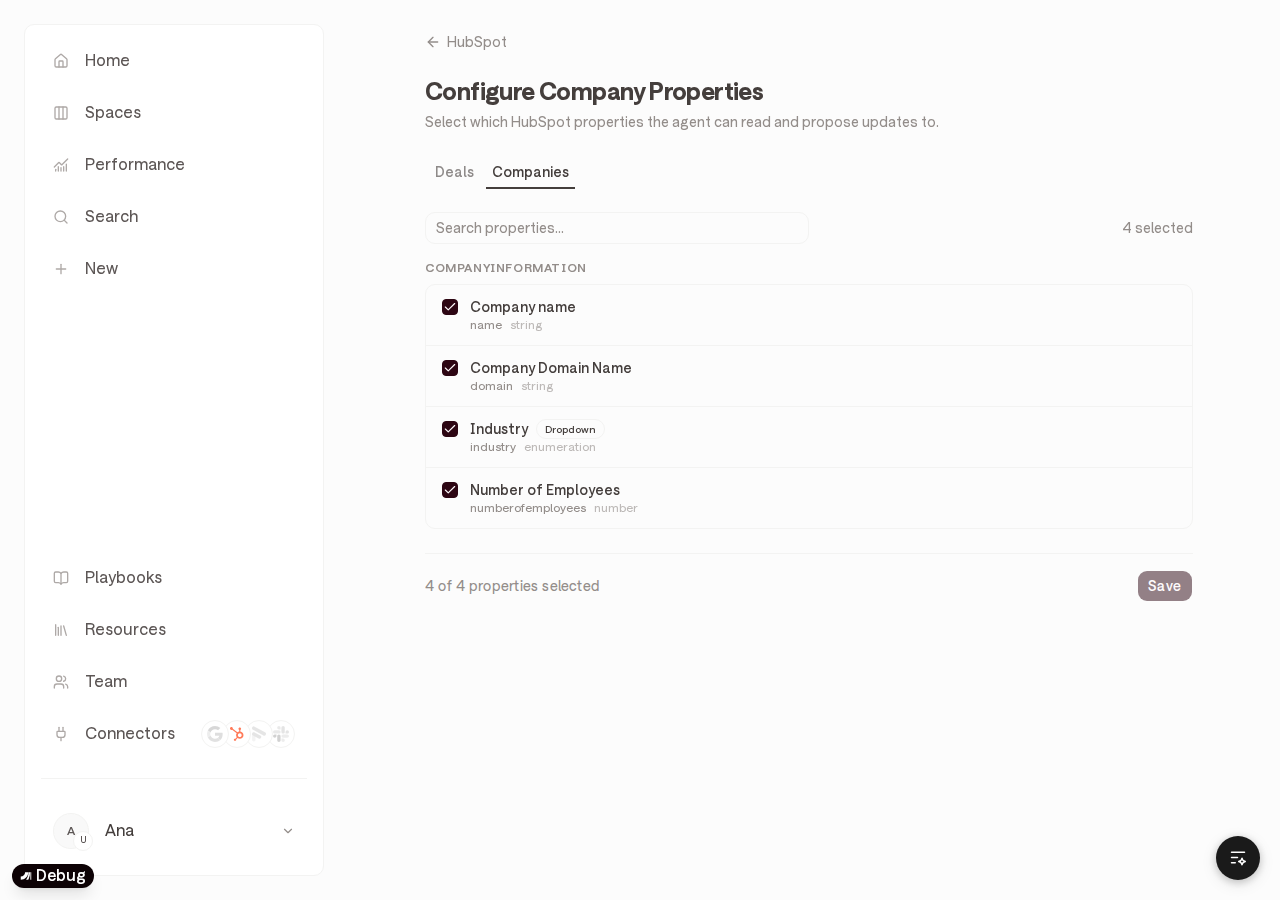
Arrows only writes a HubSpot field when someone approves the change in a space. Configuration controls which properties the agent may read and propose.
Use the app
Manual: connect a HubSpot deal to a space
In Arrows, click New.
Search for a HubSpot deal and pick it. Arrows creates a space from that deal.
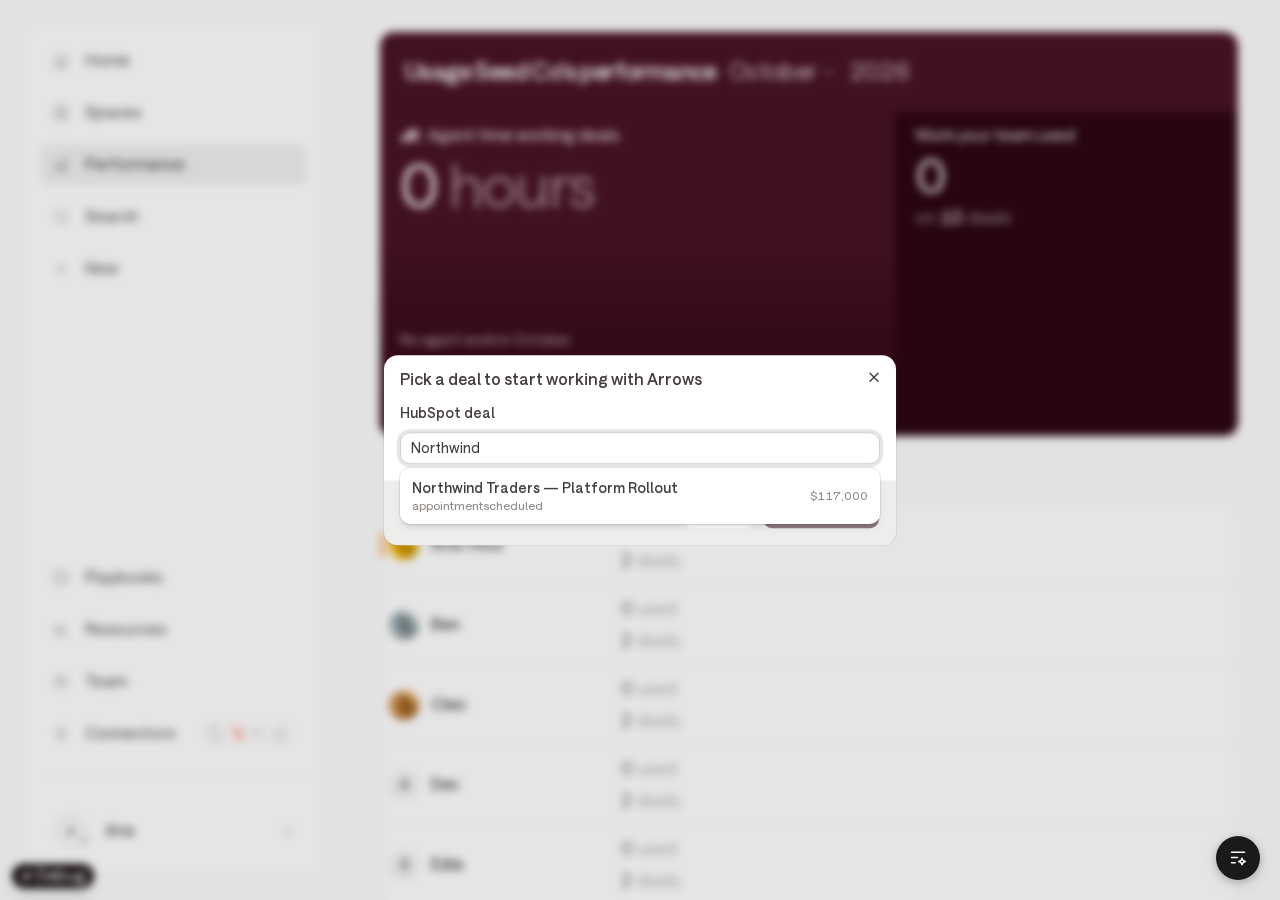
You can also connect a HubSpot deal to an existing space from the space’s CRM controls.
Automated: agent prepares HubSpot updates
After a call, email, or other context lands in a space, Arrows can prepare HubSpot field updates on the plan. No sync runs until you review them.
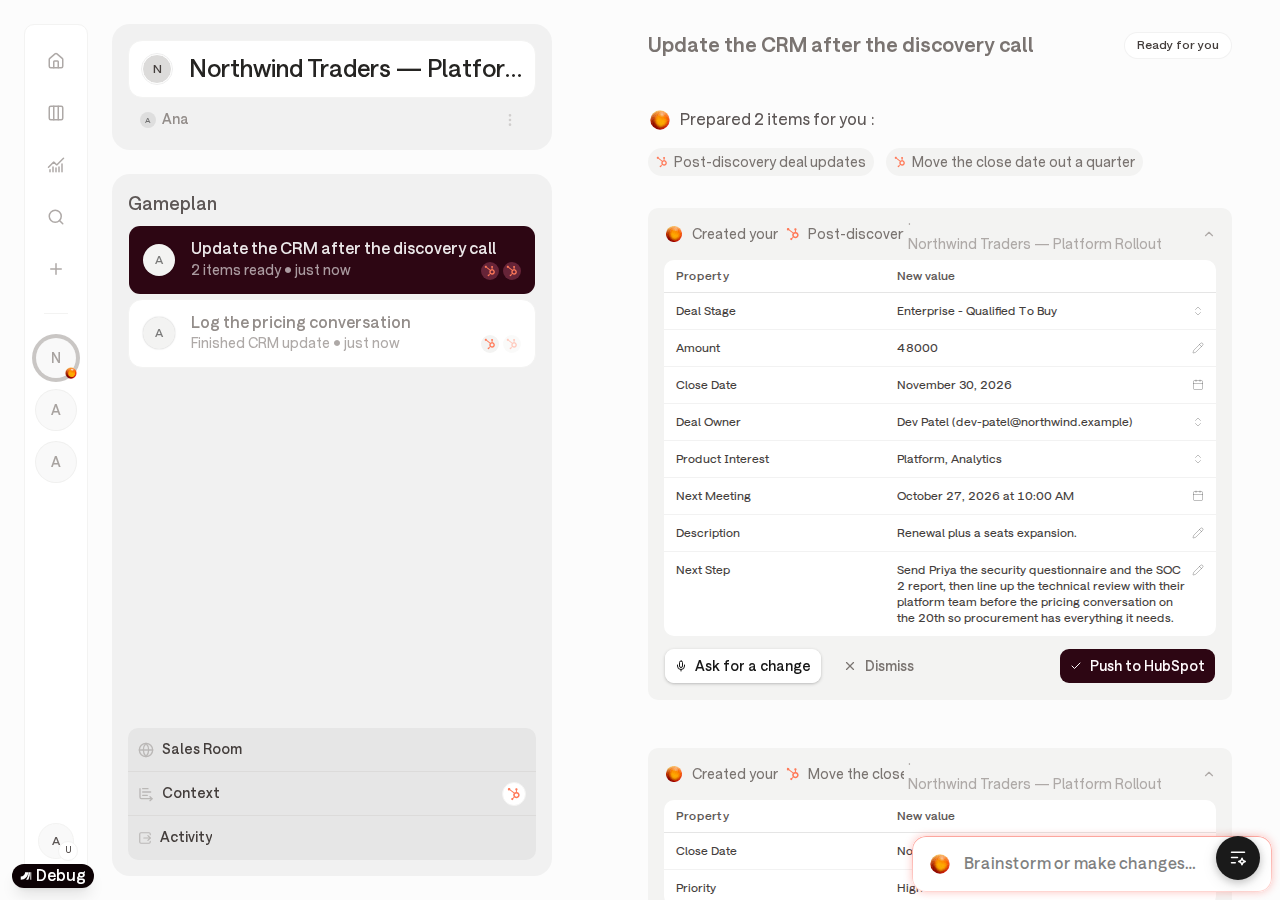
Manual: approve a HubSpot update
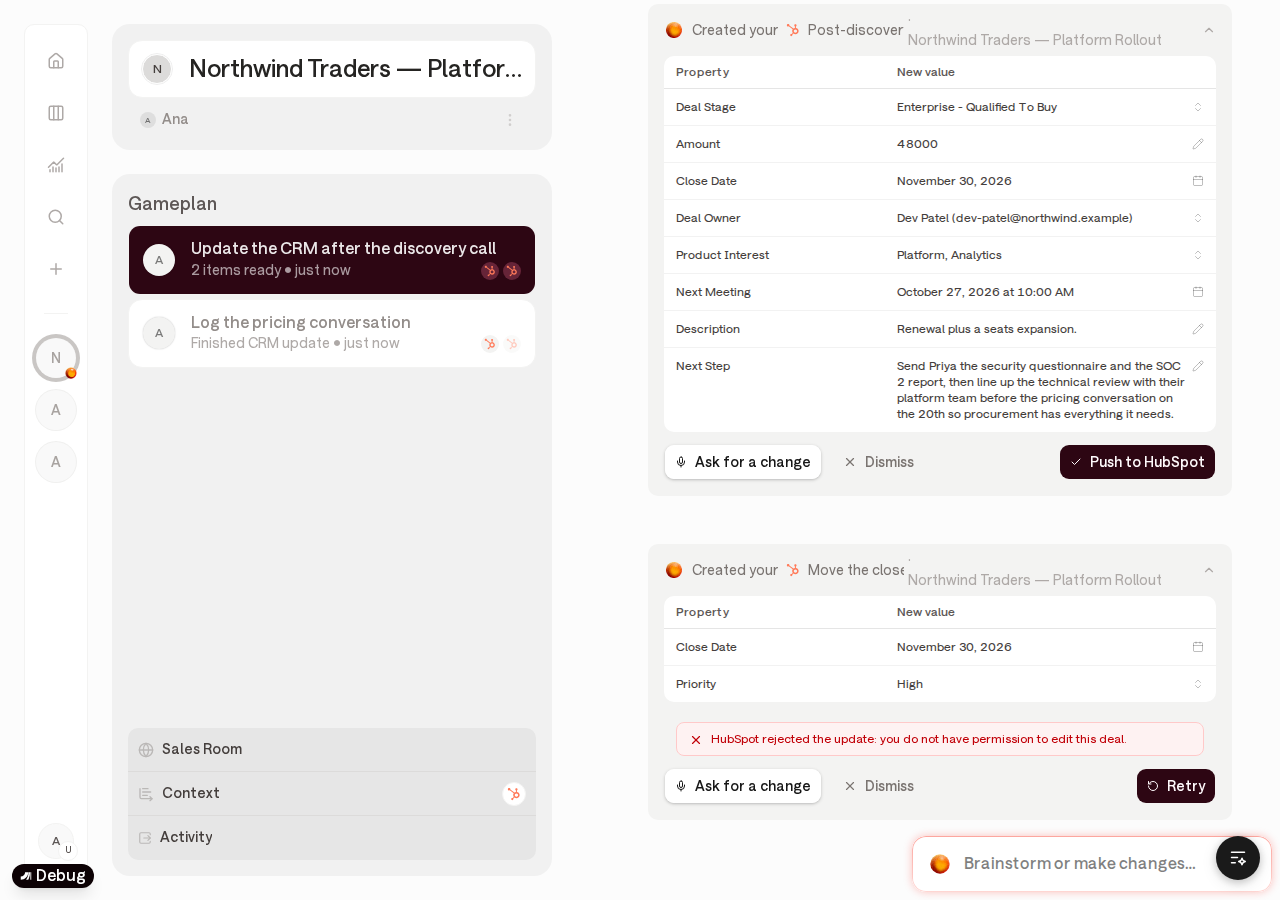
Open the prepared HubSpot update on the plan.
Review the property changes.
Click Push to HubSpot to write the change, or Dismiss to leave HubSpot unchanged.
Disconnect the app
Note: If you remove HubSpot from your team in Arrows, Arrows stops reading and writing HubSpot for that organization. Existing HubSpot records are not deleted. Existing spaces and their history in Arrows remain. If you add HubSpot again later, someone must connect the account again.
Log in to Arrows.
Open Connectors → HubSpot.
Open the ⋯ menu and choose Remove from team.
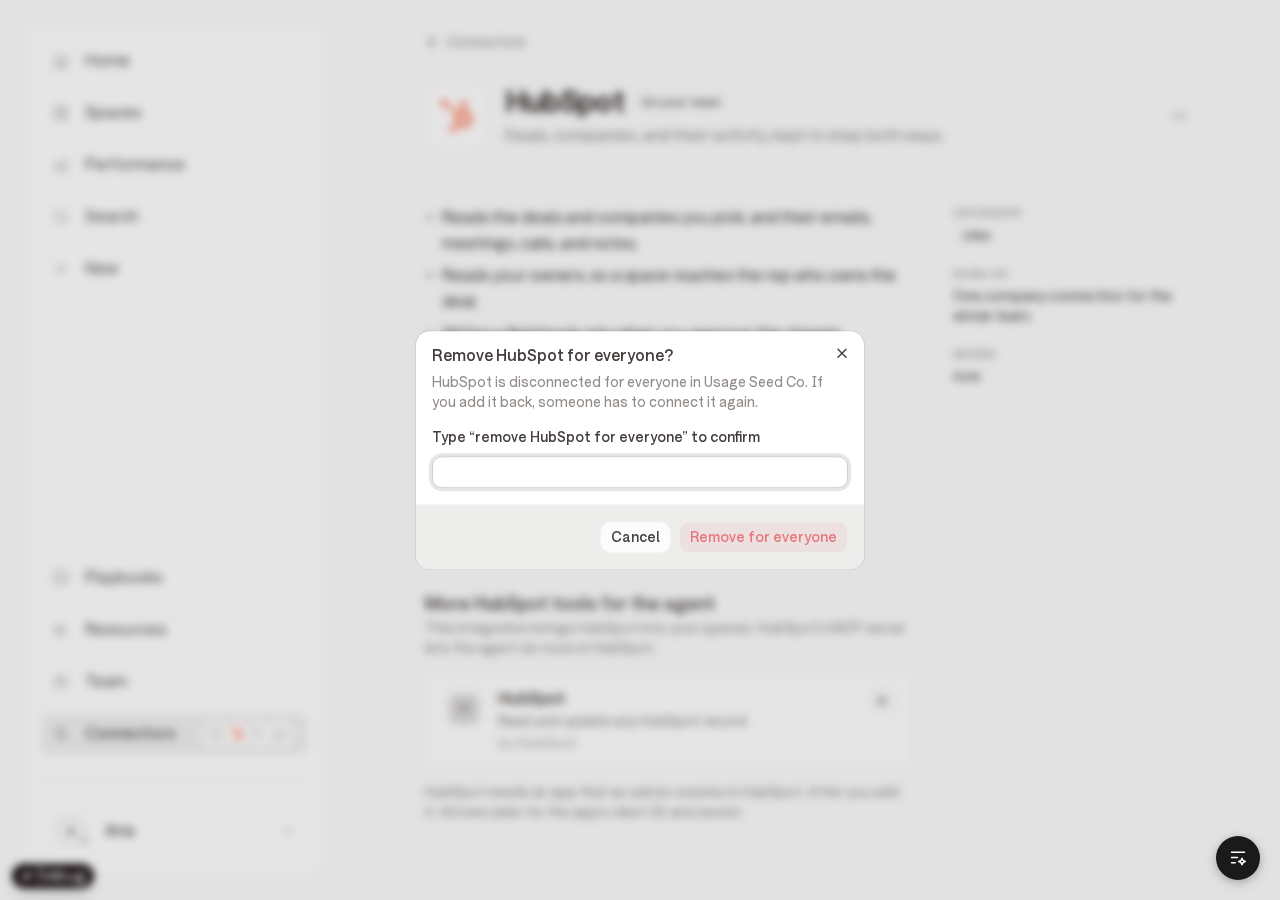
Confirm by typing
remove HubSpot for everyone, then click Remove for everyone.
Uninstall the app
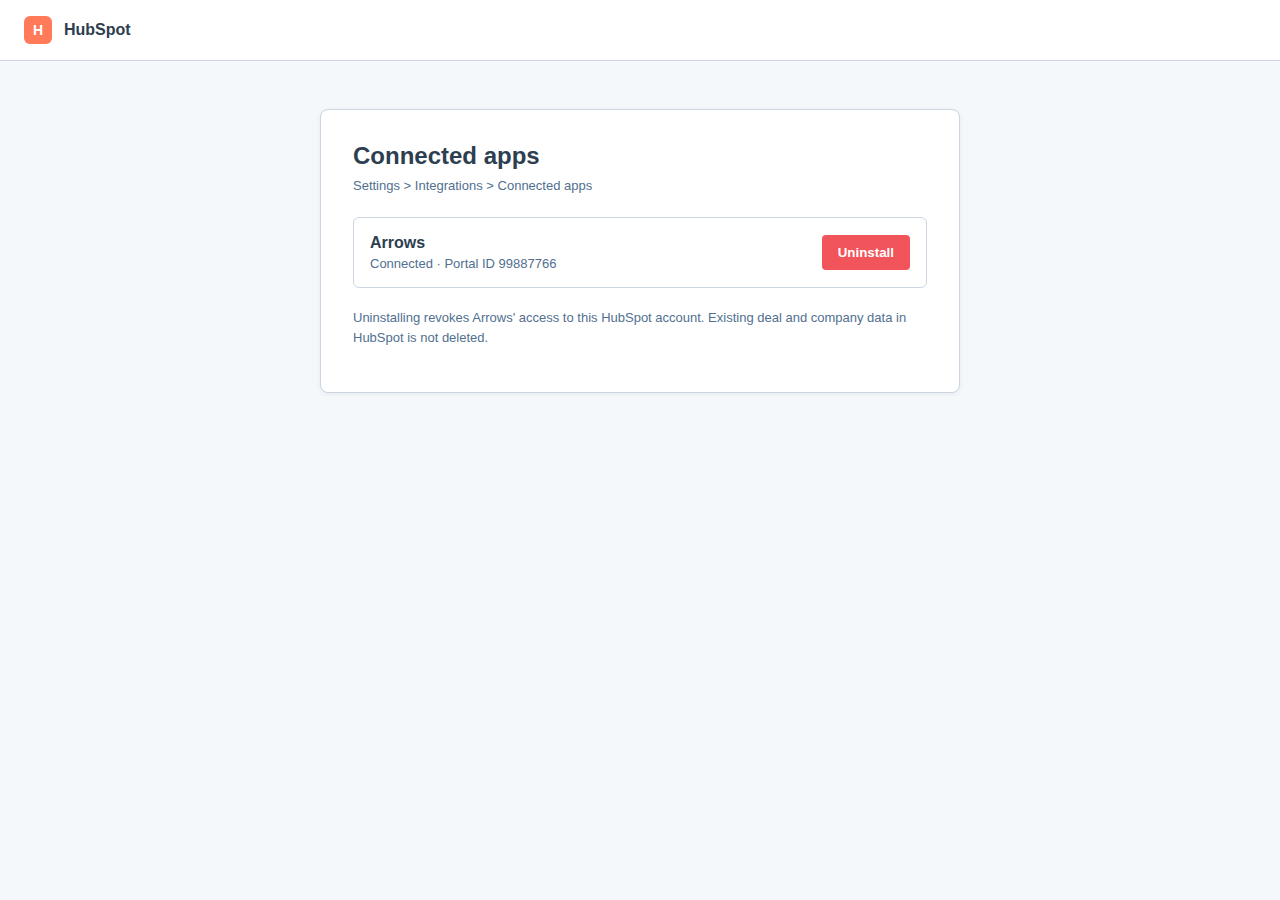
To uninstall Arrows from your HubSpot account, follow HubSpot’s instructions for uninstalling an app.
In HubSpot: Settings → Integrations → Connected apps → find Arrows → Uninstall.
What happens to data
Action | HubSpot data | Arrows data | Access |
|---|---|---|---|
Remove HubSpot from your team in Arrows | Unchanged | Spaces and history remain; CRM sync stops | Arrows can no longer call HubSpot for that org until someone connects again |
Uninstall Arrows in HubSpot | Unchanged | Spaces and history remain; sync stops; Arrows shows reconnect needed | HubSpot revokes the OAuth grant |
Uninstalling or disconnecting does not delete deals, companies, contacts, or other HubSpot records. It does not delete Arrows spaces. It only stops Arrows from reading HubSpot and from writing approved updates.